
My Celiac Card
Communicate your dietary needs with confidence
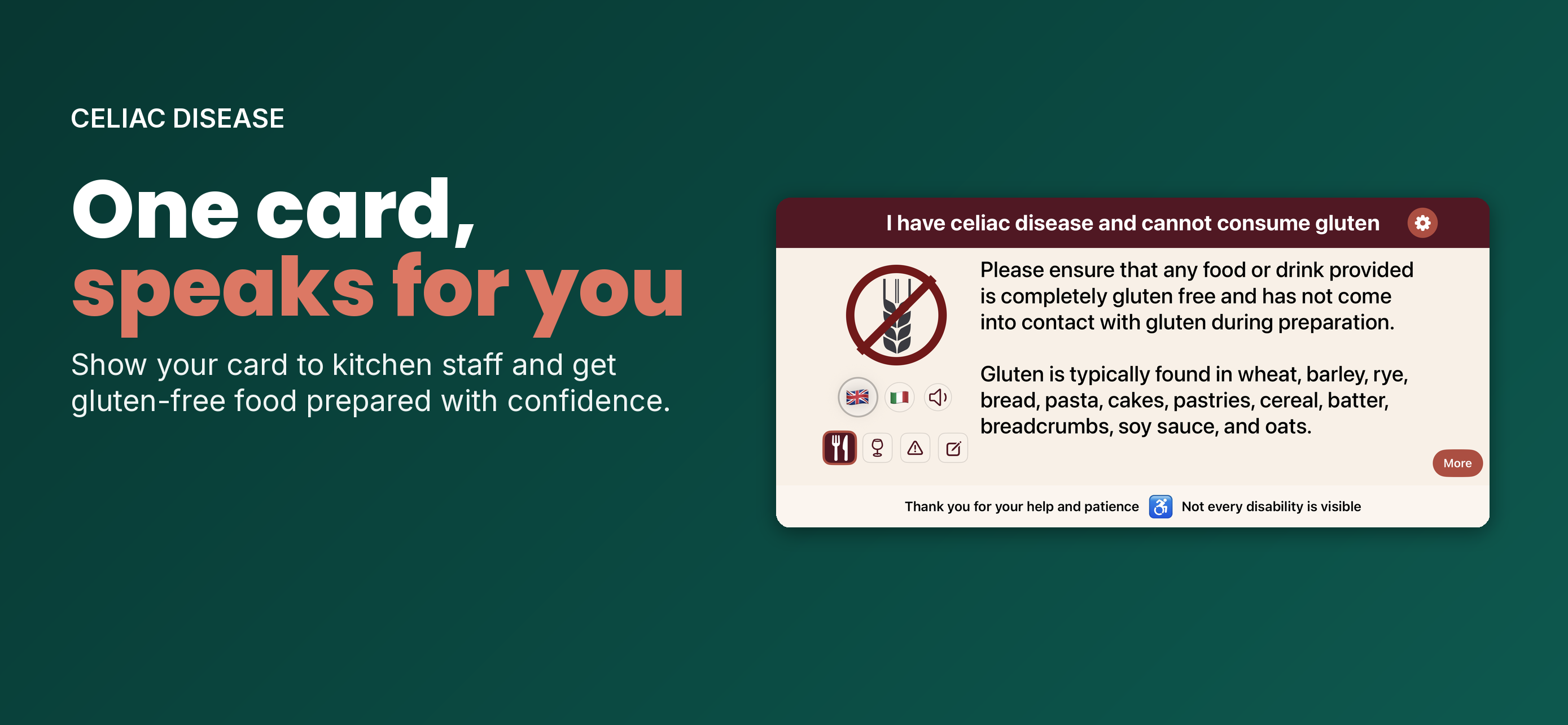
My Celiac Card helps people with celiac disease communicate clearly and safely with restaurants, bars, and the people around them. Built for my daughter, who has celiac disease, it offers four situational cards — Restaurant, Bar/Drinks, Severity, and a fully editable Custom card — each with clear, translated messaging and a breakdown of what's safe. Translation and read-aloud work fully offline. Home Screen and Lock Screen widgets put the right card one tap away.

Frequently Asked Questions
How do I change the language?+
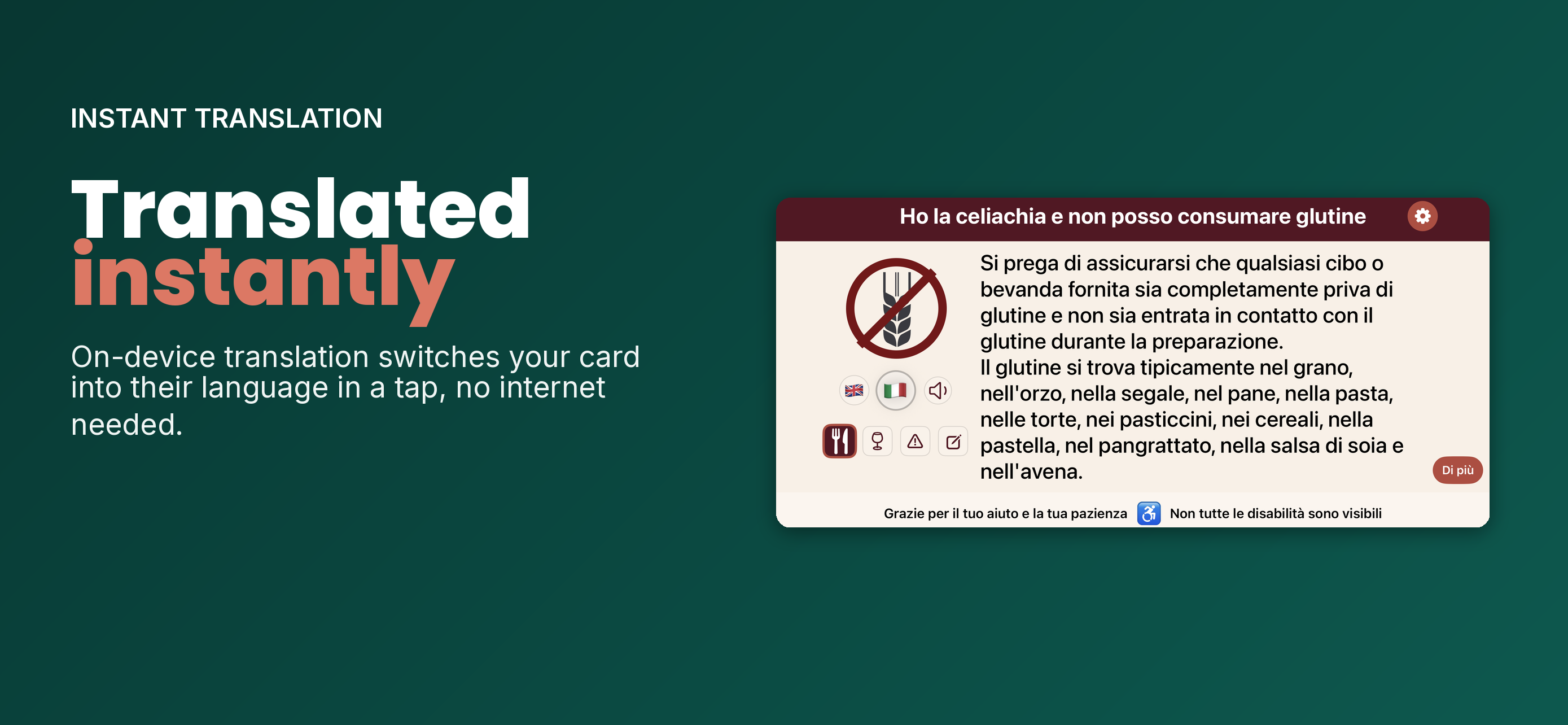
Tap the settings icon (⚙️) on the card screen, then go to Languages. Set your Home Language and Travelling Language from the dropdowns. Once set, tap the flag icons on the main card screen to switch between them instantly.
How do I switch to my travelling language?+
On the card screen, tap the flag icon for the language you want to display. Your card, including the More Details screen, updates immediately — no need to go into Settings.
Which languages are available?+
My Celiac Card supports a wide range of languages using on-device translation. Check the flag selector on the card screen, or Settings → Languages, for the full list available on your device.
Can I show the card offline?+
Yes. All four cards, translation, and read-aloud work fully offline. No internet connection is required to display, translate, or share your card.
What are the four cards for?+
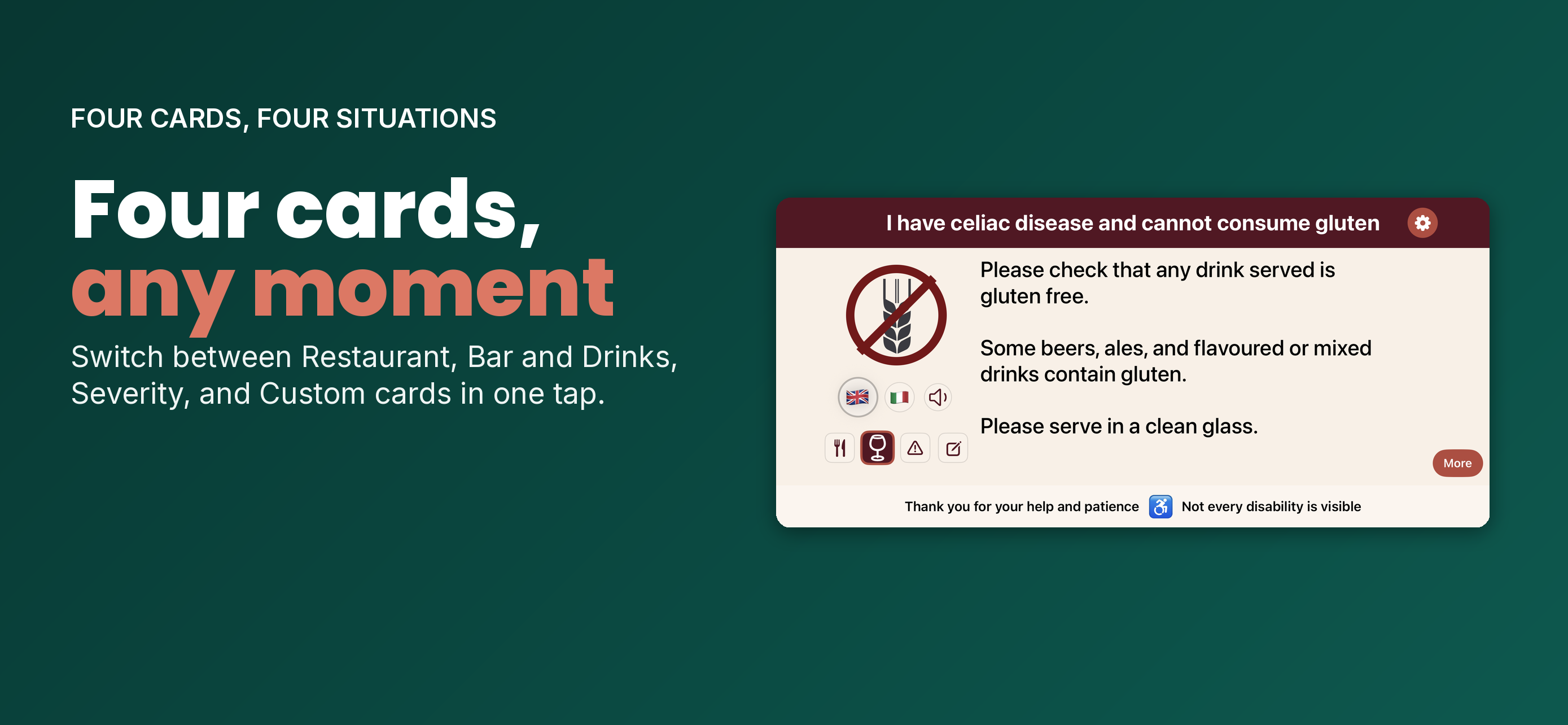
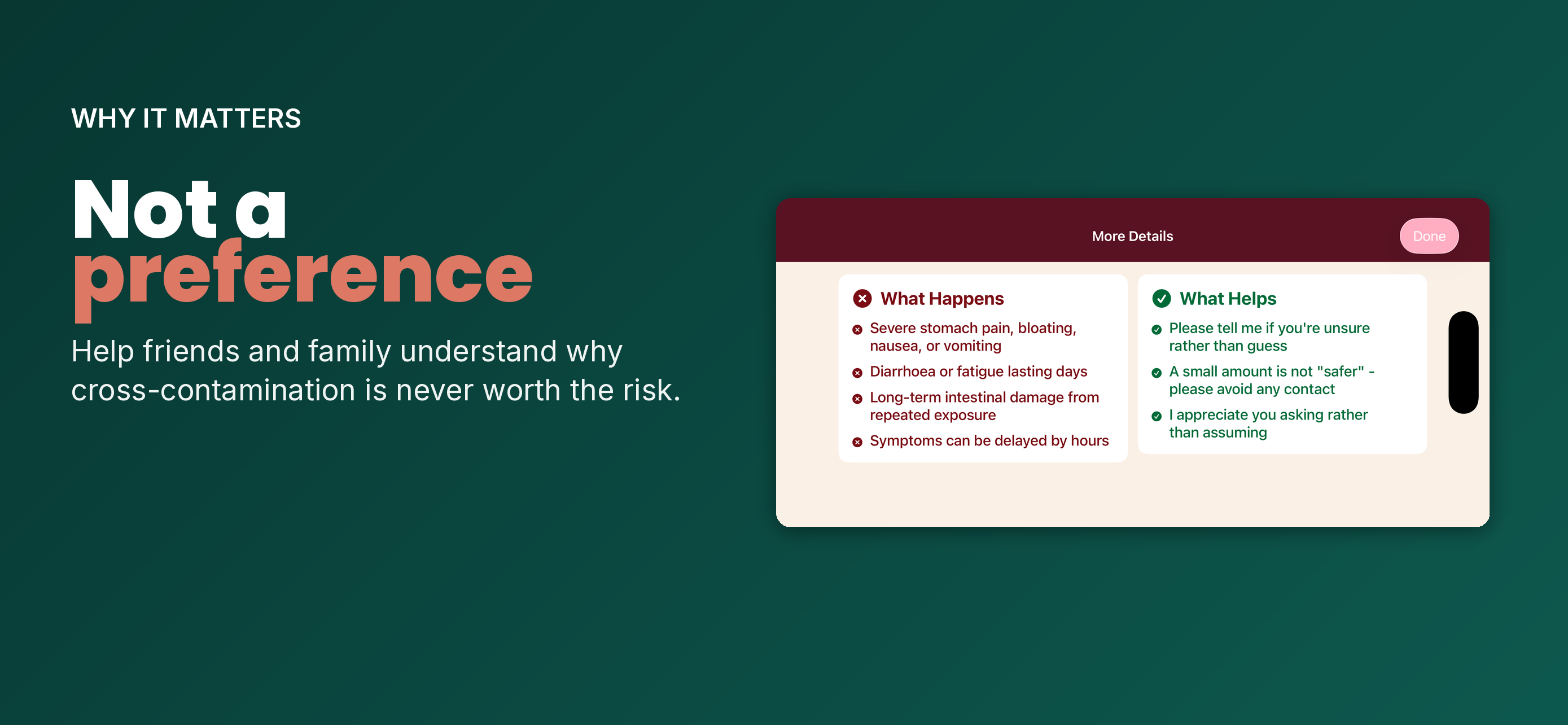
Restaurant, Bar/Drinks, Severity, and Custom each cover a different situation. Restaurant and Bar/Drinks speak to kitchen and bar staff about food and drink safety. Severity helps friends, family, or hosts understand why celiac disease needs to be taken seriously. Custom lets you write your own message for anything the other cards don't cover.
How do I switch between cards?+
Tap any of the four icons beneath the flag row on the card screen to switch instantly between Restaurant, Bar/Drinks, Severity, and Custom.
Can I create my own card?+
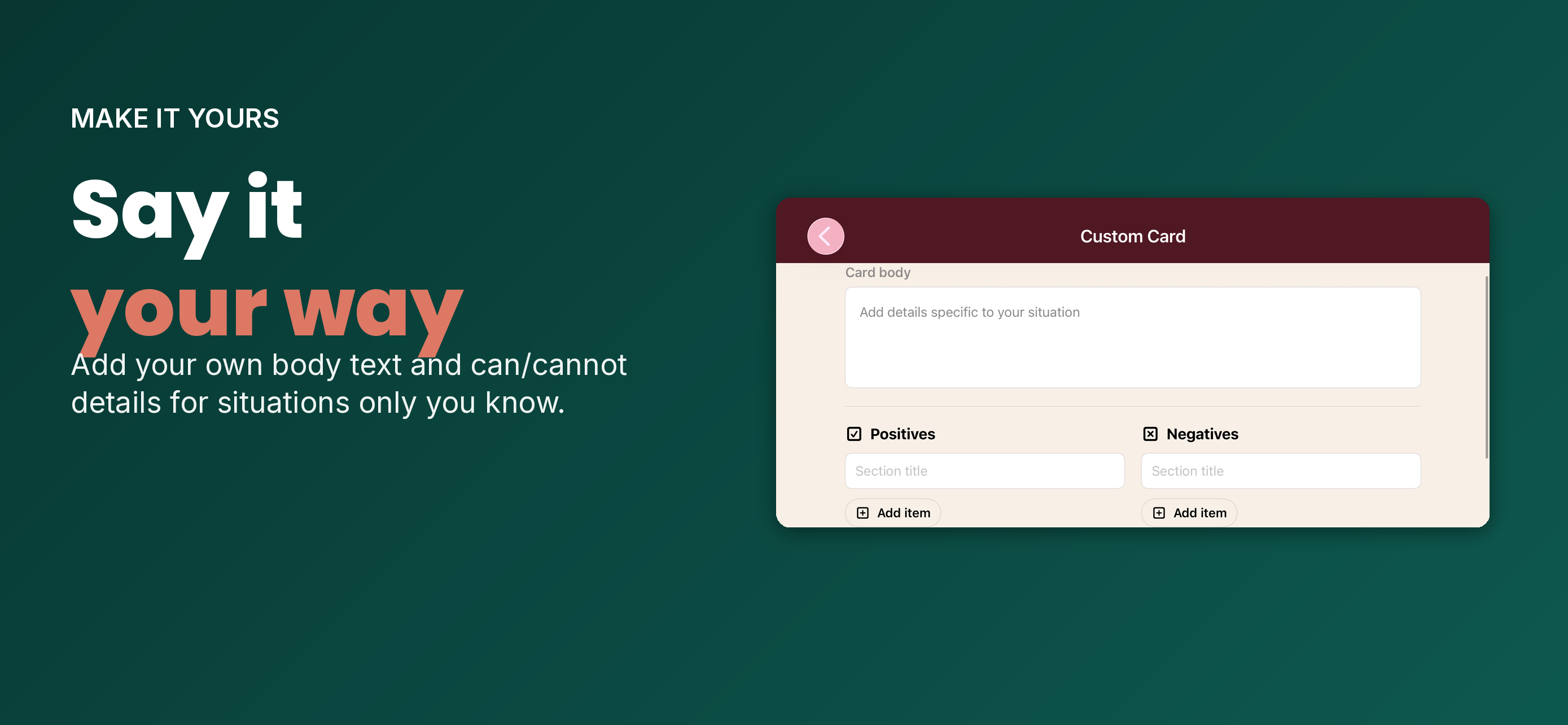
Yes. The Custom card lets you write your own body message, then add your own "can" and "cannot" lists with their own headings. Edit it any time from the Custom card itself, or from Settings → Cards → Edit Custom Card.
Can I edit the wording on the Restaurant, Bar/Drinks, or Severity cards?+
These three cards use fixed, carefully worded and fully translated text to make sure the message stays clear and accurate in every language. If you want to personalise your wording, use the Custom card instead — it's designed exactly for that.
What does "More" show me?+
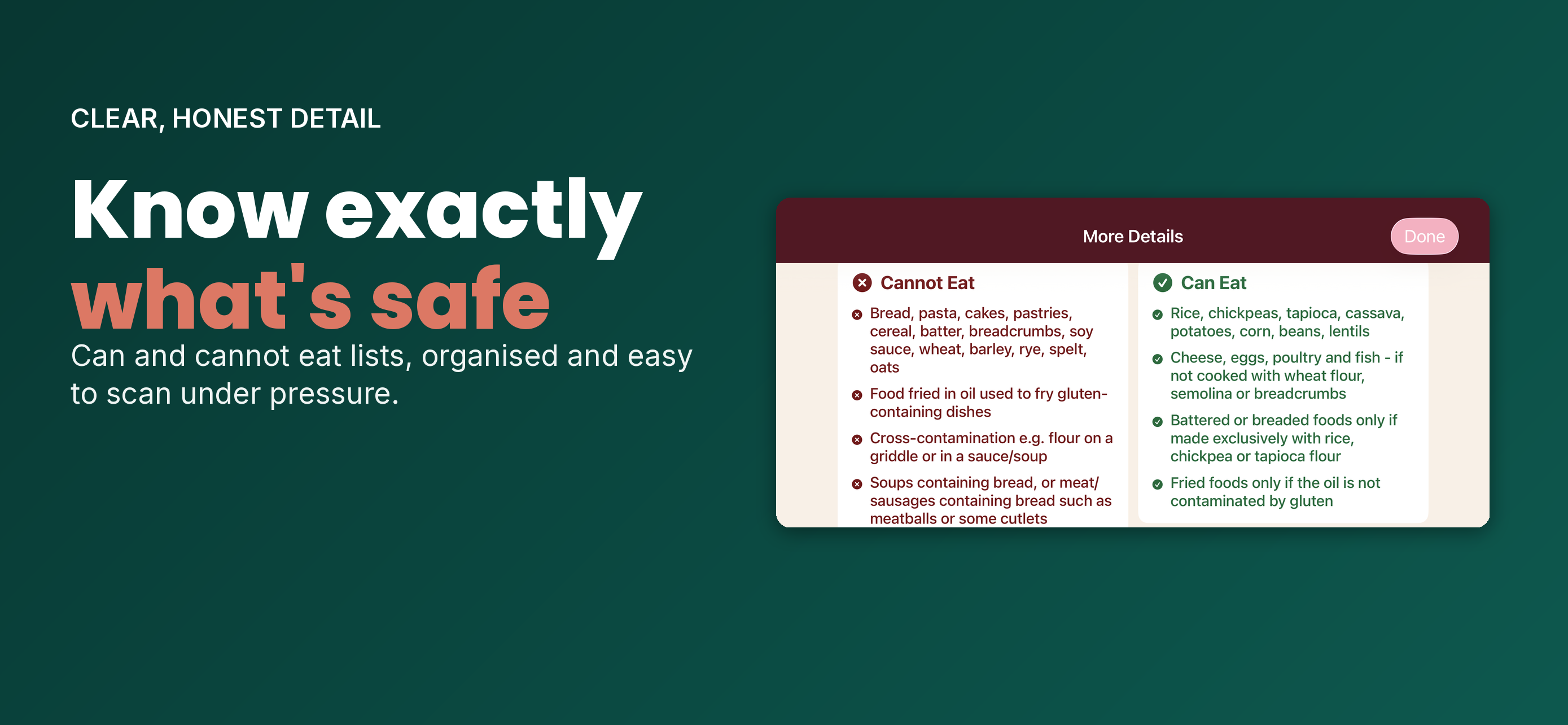
Each card has a More Details screen with a clear breakdown of relevant information — for example, Cannot Eat / Can Eat for the Restaurant card, or What Happens / What Helps for the Severity card — organised into short, easy-to-scan lists.
How does read-aloud work?+
Tap the speaker icon next to the flag selector to have your device read the current card aloud in the selected language — useful when showing your screen isn't practical.
What are the widgets for?+
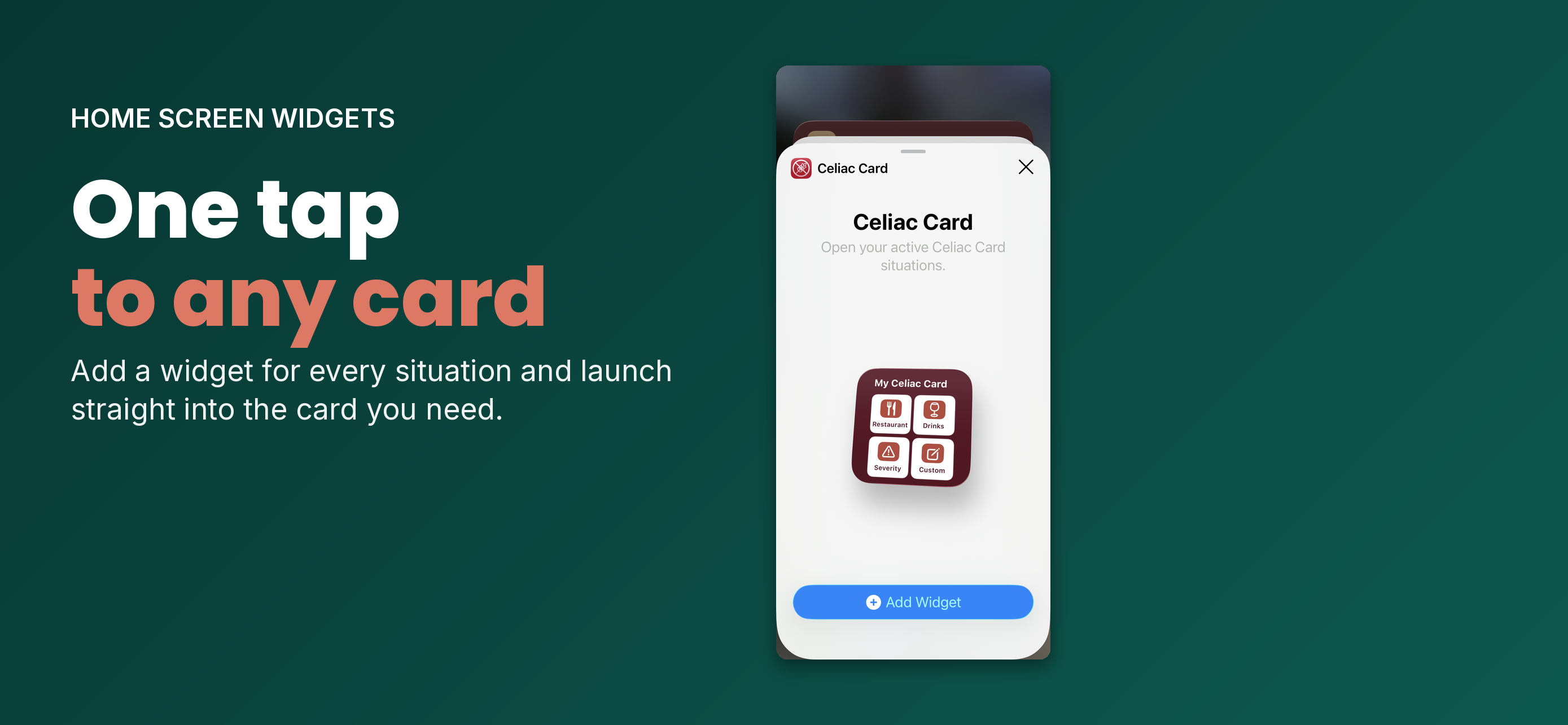
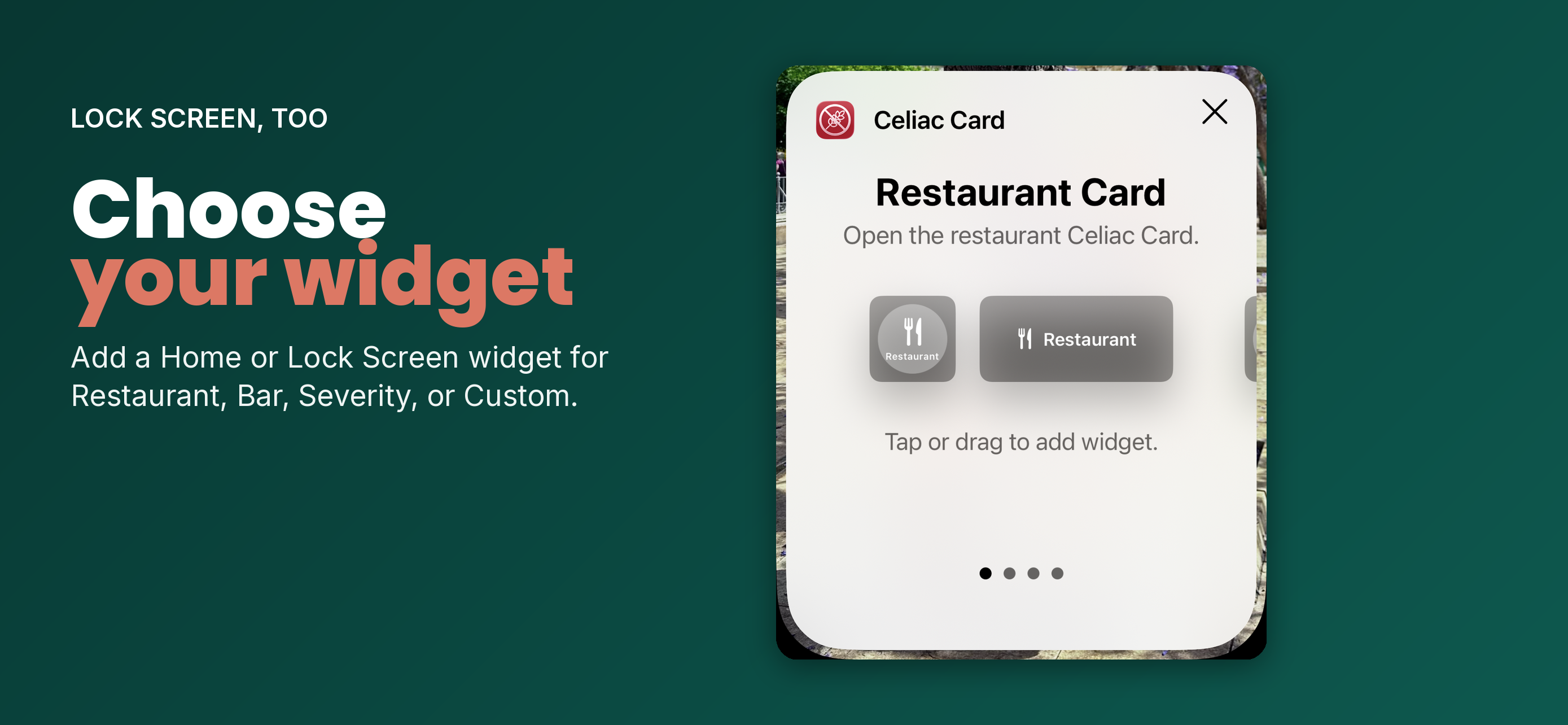
Home Screen widgets let you add a shortcut for any card — Restaurant, Bar/Drinks, Severity, or Custom — and launch straight into it with one tap. Lock Screen widgets do the same without even unlocking your phone, so you can get to the right card as fast as possible.
How do I add a widget?+
Long-press your Home Screen or Lock Screen, tap the add button, search for My Celiac Card, and choose the card you want quick access to. You can add more than one widget if you want shortcuts to several cards at once.